next app을 설치하고 터미널에 next start를 입력하면 아래와 같은 에러를 마주할 수 있다


Could not find a production build in the '/Users/xxxxx/xxxxx/test-next-js/.next' directory. 
Try building your app with 'next build' before starting the production server.
https://nextjs.org/docs/messages/production-start-no-build-id at NextNodeServer.getBuildId
(/Users/xxxxx/xxxxx/test-next-js/node_modules/next/dist/server/next-server.js:349:23)


해당 오류 메시지는 build 없이 Next.js 프로덕션 서버를 시작해서 발생한다. 프로덕션 서버를 시작하기 전에 next build 명령을 사용하여 Next.js 응용 프로그램을 빌드해야 한다. 이 명령은 프로덕션을 위해 코드를 컴파일하고 최적화한다고 한다.


문제를 해결하려면 다음 단계를 따르자:

  1. terminal 또는 command prompt를 연다
  2. Next.js 프로젝트의 root directory 로 이동한다.
  3. 다음 명령어를 실행한다. 이 명령어는 루트 root directory에 production build를 생성한다.
next build

4.build에 성공하면 next start 명령어를 실행할 수 있다.

하지만 나는 다음과 같은 문제를 만났다.

bash: next: command not found

이 경우는 CLI 환경에서 다음 명령을 인식할 수 없음을 의미한다. 일반적으로 필요한 dependency 또는 pakage가 설치되지 않았거나 Node.js 환경에 문제가 있을 때 발생한다고 한다.


문제를 해결하려면 다음 단계를 따르자:


1. 시스템에 Node.js 설치되어 있는지 확인해보자. 터미널에서 다음 명령을 실행하여 Node.js 설치되어 있는지 확인할 있다.

node -v

Node.js가 설치되지 않은 경우, 공식 Node.js 웹사이트(https://nodejs.org)에서 Node.js를 다운로드하여 설치하자.


2. Node.js 설치되었으면 터미널에서 Next.js 프로젝트의 루트 디렉토리로 이동하고 다음 명령어를 실행해 Next.js 프로젝트에 필요한 dependency 설치한다.  명령어는 package.json 파일을 기반으로 필요한 패키지와 함께 Next.js 설치한다.

npm install

또는

yarn


3. 이제 프로덕션 서버를 실행할 있다. 다음과 같은 명령어를 입력해보자

npx next start

또는 

yarn next start


나의 경우엔 이런 방법으로 해결했었다. 


my-name-ui-MacBookPro:test-next-js my-name$ yarn next start
yarn run v1.22.18
$ /Users/my-name/workspace/test-next-js/node_modules/.bin/next start
- ready started server on 0.0.0.0:3000, url: http://localhost:3000

'Front-End > Next.js' 카테고리의 다른 글

아니 왜 이미지 주소가 두번 반복되지?  (0) 2022.07.01
Next.js+TypeScript에서 슬라이드 구현  (0) 2022.07.01
Next.js+TypeScript 설치  (0) 2022.06.25


메이플 동아리 소개 페이지를 Github Pages로 배포했다. 그런데 어떤 이미지는 렌더가 되고

어떤 이미지는 뜨지 않았다. 문제 없이 나왔으면 제대로 알고 가지 못했을 뻔 했는데 어쩌면 다행이었다.


어디갔니?


경로에 hufs_maple이 두번 나온다. 경로에 hufs_maple이 두번 나온다.


정말 막막했지만 다행히 먼저 같은 시행착오를 겪은 선배님이 쓰신 글을 보고 쉽게 해결할 수 있었다.


전 

/** @type {import('next').NextConfig} */

module.exports = {
  reactStrictMode: true,
  images: {
    loader: "akamai",
    path: "https://aingface.github.io/hufs_maple" ,
  },
  assetPrefix: "/hufs_maple";,
};


images.path가 먼저 나오고 assetPrefix가 나오기 때문이라고 한다. 

전의 코드를 보면 경로가 2번 나오는 이유를 알 수 있다.


/** @type {import('next').NextConfig} */

const isProduction = process.env.NODE_ENV === "production";
const productionURL = "https://aingface.github.io";
const productionPath = "/hufs_maple";

module.exports = {
  reactStrictMode: true,
  images: {
    loader: "akamai",
    path: isProduction ? productionURL : "https://localhost:3000",
  },
  assetPrefix: isProduction ? productionPath : "",
};


다음과 같이 고쳤다.


참고 : 

https://velog.io/@juunini/next.config.js-%EC%9D%98-images.path%EC%99%80-assetPrefix

'Front-End > Next.js' 카테고리의 다른 글

next start 시 Could not find Error  (0) 2023.07.03
Next.js+TypeScript에서 슬라이드 구현  (0) 2022.07.01
Next.js+TypeScript 설치  (0) 2022.06.25

지난 6월 동아리 소개 사이트를 만들어보면서 동아리원의 정보를 통계낸 부분을 그래프로 만들어 보여주고 싶었다.

슬라이드로 보여주면 귀찮게 스크롤을 하지 않아도 될거라는 생각에 슬라이드로 차트를 보여주고 싶었다. 

처음엔 호기롭게 라이브러리를 쓰려고 했다. 하지만 Next에서는 잘되지 않았다.

그래서 까짓꺼 직접 만들어보자! 라고 생각했다.


아이디어


1.

- 이미지 파일을 배열로 만든다. 현재 이미지 Index와 다음으로 올 이미지의 index 상태를 저장할 상태 변수를 각각 만든다.

- 위 그림처럼 배열의 첫번째와 두번째 사진(이전 or 다음)을 불러와서 맨 앞사진과 같은 위치에 둔다.

- 기본으로 보일 이미지는 이미지 배열의 첫번째 이미지이고, 뒤에 있는 이미지는 두번째 이미지이다. 

- 현재 보이는 이미지가 z-index가 더 높게 한다.


초록색은 슬라이드 컴포넌트의 box border를 표현했다.


2. 

  - Next 슬라이드 버튼을 누르면 사진1은 x위치가 0에서 -100%으로 가게 애니메이션을 준다. 

  - 사진2는 위 사진처럼 X위치 100% 떨어진 위치에서 원래 위치로 이동하는 애니메이션을 보여준다.

  - 위의 애니메이션이 끝나고 (index+1)%(이미지배열 길이) 번째 이미지를 현재 맨위에 보일 이미지로 바꿔준다.


3.

  - Prev도 2와 같은 원리로 구현한다.


문제 발생


다음 버튼을 눌렀으나 역시나 생각대로 움직이지 않았다. 

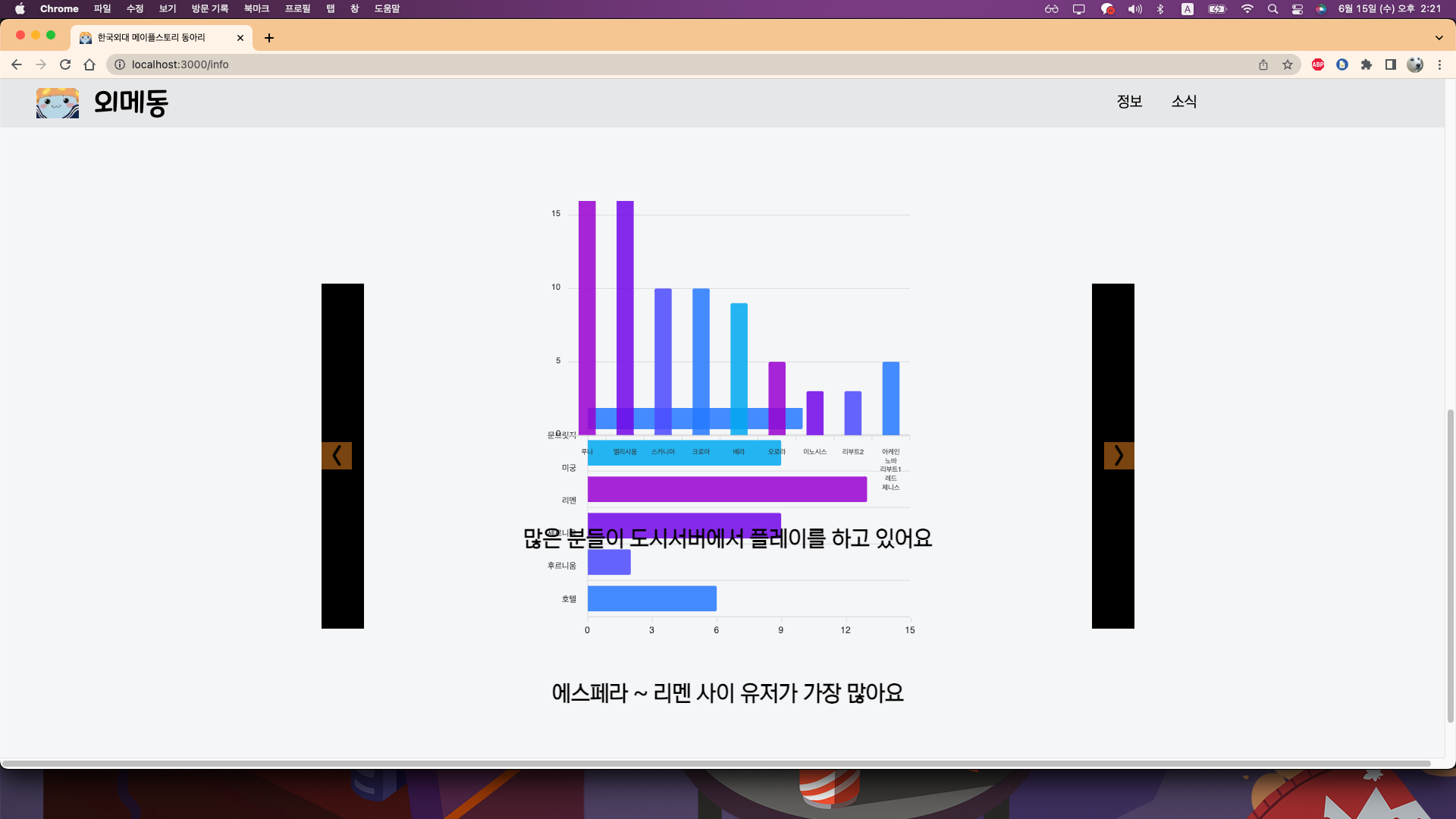
세로로 된 차트가 현재 보고 있는 차트고 가로로 된 차트가 다음 차트였다. 

그러나 겹쳐서 보였다.  overay 문제가 있었다.


https://youtu.be/3yMcen1JD0g


//styles/Home.module.css

...

.overlapGrid {
  display: grid;
  grid-template-areas: "overlay";
  /* overflow: hidden; */
}

.overlapGrid > span {
  grid-area: overlay;
  margin: 0;
}
.overlapGrid > div {
  grid-area: overlay;
}


오버레이를 적용해주었어야 했다. 아래 링크를 보고 참고했다. 

https://xyzcreativeworks.com/index.php/2021/12/06/overlap-images-using-css-grid-and-nextjs-image/


이미지를 감싸는 div tag의 className을 overlapGrid로 해서 위의 스타일을 적용했다.


import React, { useEffect, useState } from 'react';
import Image from 'next/image';
import reverse_city from '/public/images/reverse_city.jpeg'
import eurel from '/public/images/eurel.jpeg'
import florida_beach from '/public/images/florida_beach.jpeg'
import styled from 'styled-components';
import styles from '/styles/Home.module.css'

const images=[ reverse_city, eurel, florida_beach ]
// const images=[ 
//   '/images/reverse_city.jpeg', 
//   '/images/eurel.jpeg',
//   '/images/florida_beach.jpeg'
// ]


const CarouselChart = () => {
  const [index,setIndex]=useState(0)
  const [index1,setIndex1]=useState(1)

  const [transToL,setTransToL]=useState(false)
  const [transToR,setTransToR]=useState(false)

  useEffect(()=>{
    if(transToR){
      setTimeout(()=>{
        setTransToR(false)
      },800)
    }
    if(transToL){
      setTimeout(()=>{
        setTransToL(false)
        setIndex((index+1)%images.length)
        setIndex1((index1+1)%images.length)
      },800)
    }
  },[transToL,transToR])

  const handlePrev=()=>{
    setTransToR(true)
    setTransToL(false)
    
    const nextIndex=index - 1;
    const nextIndex1 = index1 -1;

    if(nextIndex1 < 0){
      setIndex1(images.length - 1)
    }else{
      setIndex1(nextIndex1)
    }

    if(nextIndex < 0){
      setIndex(images.length - 1)
    }else{
      setIndex(nextIndex)
    }
  }

  const handleNext=()=>{
    setTransToL(true)
    setTransToR(false)
  } 

  return (
    <>
    <div className='flex justify-center space-x-4 mt-16'>
      <button className='h-auto w-10 bg-red-300 font-extrabold text-3xl' onClick={handlePrev}>{'<'}</button>
        <div className={styles.overlapGrid}
        style={{
          width: '50vw',
          height: '30vh',
        }}
        >
          {/* 현재 이미지 */}
          <Image 
            className={ `
            object-contain 
            z-20 
            w-full h-full 
            border-solid border-4 border-red-500
              ${ transToL ? 'transition duration-500 ease-linear transform -translate-x-full' :
              (transToR ? 'animate-slideFromL' : '')}`}
            src={images[index]} 
            layout='responsive'
            objectFit='cover'
            alt=""
          />  
          {/* 이전 or 이후 이미지 */}
          <Image 
            className={`
            object-contain 
            z-0 
            w-full 
            h-full
            layout='responsive'
            
            ${transToL ? 'animate-slideFromR' : 
            (transToR ? 'transition duration-500 ease-linear transform translate-x-full': '')}`} 
            src={images[index1]}
            layout='responsive'
            objectFit='cover'
            alt=""
          />  
        </div>
      <button className='h-100 w-10 bg-red-300 font-extrabold text-3xl' onClick={handleNext}>{'>'}</button>
    </div>
    </>
  );
};

export default CarouselChart;

const Card1=styled.div`
  width: 100px;
  height: 100px;
  background-color: #2b6868;
`
const Card2=styled.div`
  width: 100px;
  height: 100px;
  background-color: #397c09;
`
const Card3=styled.div`
  width: 100px;
  height: 100px;
  background-color: #7c0939;
`

const Wrapper=styled.div`
  width: 100vw;
  height: 50vh;
  background-color: #203ec3;
  display: flex;
  justify-content: center;
  align-items: center;
`


우여곡절 끝에 해결했지만, 탭을 선택하면 표가 전환되는 모습을 채택했다. 


'Front-End > Next.js' 카테고리의 다른 글

next start 시 Could not find Error  (0) 2023.07.03
아니 왜 이미지 주소가 두번 반복되지?  (0) 2022.07.01
Next.js+TypeScript 설치  (0) 2022.06.25

동기

구글에 검색했을때 나오는 프로젝트를 만들기 위해 SSR(서버 사이드 렌더링)을 지원하는 Next.js를 도입해서 구현해보고자 한다.

초기 로딩은 CSR(클라이언트 사이드 렌더링)보다 빠르지만 나머지 데이터를 요청하기 때문에 완전한 로딩까지 느리다는 단점이 있다. 


SSR의 2가지 종류

 - Pre-rendering :검색엔진을 식별해서 검색엔진 일때 백엔드 서버에서 요청한 데이터를 전달. 사용자가 접근할땐 기존 리액트 방식으로 렌더링

 - Server Side Rendering : 처음 페이지 방문만 html을 만들어서 주고 다른 페이지는 리액트의 CSR 방식으로 동작 


초기 세팅


설치

  npx create-next-app --typescript [폴더 이름] //생략 시 현재 디렉토리에 설치
  
  yarn create next-app --typescript [폴더 이름] //생략 시 현재 디렉토리에 설치


절대 경로

tsconfig.json
{
    //...
    "baseUrl": ".",
    //...
    "exclude": [
        "node_modules"
    ],
    "include": [
        "next-env.d.ts",
        "**/*.ts",
        "**/*.tsx"
    ]
}


 Eslint, prettier 설치

               prettier 
               eslint-plugin-prettier 
               eslint-config-prettier 
               eslint-plugin-import 
               eslint-plugin-react 
               eslint-plugin-react-hooks 
               @typescript-eslint/parser 
               @typescript-eslint/eslint-plugin


.eslintrc

{
      "extends": ["react-app", "prettier/prettier"],
      "plugins": ["react-hooks", "simple-import-sort", "prettier"],
      "rules": {
        "prettier/prettier": "error",
        "react-hooks/rules-of-hooks": "error",
        "simple-import-sort/imports": "error",
        "simple-import-sort/exports": "error",
        "no-multiple-empty-lines": ["error", { "max": 1, "maxEOF": 0 }],
        "comma-dangle": ["error", "always-multiline"],
        "object-curly-spacing": ["error", "always"],
        "space-in-parens": ["error", "never"],
        "computed-property-spacing": ["error", "never"],
        "comma-spacing": ["error", { "before": false, "after": true }],
        "eol-last": ["error", "always"],
        "quotes": ["error", "single"],
        "no-tabs": "error",
        "semi": ["error", "never"],
        "import/no-anonymous-default-export": 0,
        "object-shorthand": "error",
        "padding-line-between-statements": [
          "error",
          { "blankLine": "always", "prev": "*", "next": "return" }
        ],
        "@typescript-eslint/no-redeclare": 0
      }
    }


.prettier.json

    {
      "printWidth": 80,
      "semi": true,
      "singleQuote": true,
      "trailingComma": "all",
      "tabWidth": 2,
      "bracketSpacing": true,
      "endOfLine": "auto",
      "useTabs": false
    }


Styled-component 설치

// 기본 styled-components
npm i styled-components @types/styled-components

yarn add styled-components @types/styled-components


//스타일이 적용되기 전에 렌더링되는 현상을 방지하고, 문자열 안에 스타일 들어가는 것 처리를 위한 설치
yarn add -dev babel-plugin-styled-components

//전역 스타일링에서 이용하기 위함 
yarn add styled-reset


파일구조

public 						
├── images
├── css										
└── data						//간단한 페이지를 만들 때 저장할 데이터

// 어플리케이션의 기능에 사용되는 소스들
src                        			 
├── component  // 컴포넌트와 컨테이너 파일들
│     ├── common  // 공통적으로 사용되는 컴포넌트들(ex button, modal)
│     └── layout  // 각 페이지들의 전체 레이아웃이자 컴포넌트들의 모임
│            ├── app
│            ├── home
│            └── directory                  
│				
├── pages // 페이지를 담당하는 컴포넌트(폴더구조로 url 결정)
│	  └── [id]
│
├── core  
│     ├── config  // 어플리케이션에서 사용되는 설정들 모임
│     ├── provider               
│     │     ├── helper // store를 이용하는 공통 로직들 정리
│     │     └── provider  // store의 값들을 컨테이너에게 전달해 줌
│     ├── redux  // Ducks 패턴으로 redux를 정의
│     └── api  // axios를 이용하여 서버와의 통신 로직을 담당
│
├── util                          
│     ├── hooks  // 각 컴포넌트에서 사용되는 공통 로직들을 커스텀 훅으로 관리
│     └── reduxUtils  // redux ducks 패턴에서 사용되는 유틸함
│
│
└── styles
      ├── global-style.ts  // 전역 스타일 설정
      └── theme.ts //  공통적으로 사용할 스타일을 지정하는 부분


_document.tsx 파일 추가

_document.tsx파일에 css를 미리 적용할 수 있다. 

next.js에서 styled component를 적용할 때 css 로딩 지연으로 깜빡이는 모습을 방지하기 위함이다.
_document.tsx 파일  _document.js 파일은 pages폴더 내부에 존재하는 모든 페이지에 global한 설정값을 줄 수 있는 파일이다.
최상위 디렉토리에 _document.tsx 파일을 생성해서 아래 코드를 넣어준다.

import Document, { Html, Head, Main, NextScript } from "next/document";
import { ServerStyleSheet } from "styled-components";

export default class MyDocument extends Document {
  //--------------For styled-components only------------//
  static async getInitialProps(ctx) {
    const sheet = new ServerStyleSheet();
    const originalRenderPage = ctx.renderPage;

    try {
      ctx.renderPage = () =>
        originalRenderPage({
          enhanceApp: (App) => (props) =>
            sheet.collectStyles(<App {...props} />),
        });

      const initialProps = await Document.getInitialProps(ctx);
      return {
        ...initialProps,
        styles: (
          <>
            {initialProps.styles}
            {sheet.getStyleElement()}
          </>
        ),
      };
    } finally {
      sheet.seal();
    }
  }
  //---------------------------------------------------//
  render() {
    return (
      <Html lang="en">
        <Head>

        </Head>
        <body>
          <Main />
          <NextScript />
        </body>
      </Html>
    );
  }
}


레이아웃  사용 방법


MainLayout 컴포넌트

import MainHeader from 'components/Layout/MainHeader';
import React from 'react';
import Footer from 'components/Layout/Footer';
import Head from 'next/head';
import styled from 'styled-components';

type layoutProps={
  children:React.ReactNode | JSX.Element;
}

const MainLayout = ({children}:layoutProps ) => {
  return (
    <LayoutWrapper>
      <Head>
        <title>타이틀</title>
        <meta name="description" content="페이지 설명" />
        <link rel="icon" href="/favicon.ico" />
      </Head>
      <MainHeader/>
        {children}
      <Footer/>
    </LayoutWrapper>
  );

}
export default MainLayout;

const LayoutWrapper=styled.div`
  width:100vw;
  backgroundColor:'#f6f7f9';
  
  /* max-width:1140px;
  min-width:280px; */
`

헤더와 푸터 등이 들어간다.


pages/index.tsx

import type { NextPage } from 'next';
import MainLayout from 'components/Layout/MainLayout';
import React from 'react';

import { useDispatch } from 'react-redux';
import { setWindowSize } from 'store/modules/slice/windowSizeSlice';

const Home: NextPage = () => {
  return (
      <MainLayout>
         ...  
      </MainLayout>
  )
}

export default Home


위 코드는 MainLayout 이라는 컴포넌트로 감싸주고 ... 이라는 부분에 children을 넣어주면 된다.


참고


초기 셋팅 : https://velog.io/@devstone/Next.js-Typescript-%EC%B4%88%EA%B8%B0%EC%84%B8%ED%8C%85-%ED%95%98%EA%B8%B0

절대 경로 설정 : https://flamingotiger.github.io/frontend/react/nextjs-absolute-path/ 

Styled-Components 셋팅 : https://yoon990.tistory.com/54

로컬 폰트 적용 : https://velog.io/@soonmac/Next.js-%EB%A1%9C%EC%BB%AC-%ED%8F%B0%ED%8A%B8-%EC%A0%81%EC%9A%A9%ED%95%98%EA%B8%B0

파일 구조 : https://velog.io/@jodmsoluth/nextjs-%ED%8C%8C%EC%9D%BC%EA%B5%AC%EC%A1%B0

styled-components 셋팅: https://velog.io/@danmin20/Next.js-Typescript-Styled-component-%EC%89%BD%EA%B2%8C-%EA%B5%AC%EC%B6%95%ED%95%98%EA%B8%B0


React Redux 앱 만들기

# Redux + Plain JS template
npx create-react-app my-app --template redux
yarn create-react-app my-app --template redux

# Redux + TypeScript template
npx create-react-app my-app --template redux-typescript
yarn create-react-app my-app --template redux-typescript


redux

$npm install redux
$yarn add redux


react-redux

$npm install --save @types/react-redux
$yarn add @types/react-redux


redux-logger

$ npm i --save @types/redux-logger
$ yarn add @types/redux-logger


redux-toolkit

# NPM
npm install @reduxjs/toolkit

# Yarn
yarn add @reduxjs/toolkit


redux-devtools

$npm install --save-dev redux-devtools-extension
$yarn add redux-devtools-extension


'Front-End > Typescripit' 카테고리의 다른 글

Create React App TypeScript  (0) 2022.04.21

ㄹhttps://medium.com/tfogo/advantages-and-pitfalls-of-arrow-functions-a16f0835799e#:~:text=The%20takeaway%3A%20Function%20expressions%20are,of%20this%20in%20their%20scope 


Advantages and Pitfalls of Arrow Functions

There are big differences between arrow functions and classic function expressions.

medium.com

해당 게시물을 참고해서 번역했습니다.


이 글에 들어가기 앞서 먼저 알아두면 좋은 개념을 설명 합니다. 아시는 분은 넘어가도 됩니다. 


context : 함수를 호출한 object 

scope : 현재 실행되는 context로 여기서 context는 값과 표현식이 표현되거나 참조 될 수 있는 것을 의미 한다.


lexical scope(stactic scope): 함수나 변수의 scope를 호출된 곳이 아닌 정의 된 곳을 기준으로 정함.

dynamic scope : 함수나 변수의 scope를 호출된 라인을 기준으로 정함.


this : 함수 내에서 함수를 호출한 context를 뜻한다. 

화살표 함수에서는 자신을 감싼 stactic scope, 전역 코드에서는 global object를 가리킨다 


bind

ECMAScript5에서 도입되었습니다.  f.bind(someObject)를 호출하면 f와 같은 본문(코드)과 범위를 가졌지만 this는 원본 함수를 가진 새로운 함수를 생성합니다. 새 함수의 this는 호출 방식과 상관없이 영구적으로bind()의 첫 번째 매개변수로 고정됩니다.


일반 함수와 화살표 함수 사이에는 큰 차이가 있습니다. 어떤 상황에서는 훨씬 효과적이지만 어떤 때에는 그렇지 못합니다.

Javascript 화살표 함수는 함수를 작성하는 더욱 효과적인 방법으로  ES2015에서 도입되었습니다.  아래 코드 예시에서 foo와 bar는 같은 기능을 합니다. 


let foo = function() {
  console.log('BAZ')
}
let bar = () => {
  console.log('BAZ')
}
foo() // BAZ
bar() // BAZ

 하지만 화살표 함수는 단순히 function 으로 표현되는 함수의 syntactic sugar(같은 기능을 하지만 더 쉽게 작성할 수 있는 새로운 문법)가 아닙니다. 여기엔 반드시 알아야하는 큰 차이가 있습니다. 이 차이는 화살표 함수를 더 멋지게 만들지만, 제대로 알고 쓰지 않으면 문제가 생길 수 있습니다. 이 경우 화살표 함수로 해결할 수 없으므로 function 함수 식을 사용해야 합니다.


화살표 함수와 this

function 함수 표현에서 this 키워드는 함수가 호출된 context에 따라 바인드 됩니다. 반면 화살표 함수는 lexical scope에서 이 값을 사용합니다. 이 차이로 다른 동작을 하게 됩니다. context는 어떻게 호출되었는지가 중요하고  scope는 어떻게 정의되었는지가 중요합니다.


context에 관한 예시입니다. 함수에 의해 method가 정의된 객체를 봐주세요. 


let obj = {
  myVar: 'foo',
  
  myFunc: function() {
    console.log(this.myVar)
  }
}obj.myFunc() // foo

obj는 myFunc를 호출합니다. obj는 myFunc의 context입니다. 그래서 myFunc에서 this의 값이 obj에 바인딩됩니다. context는 어떻게 호출되냐에 따라 다르게 정의될 수 있습니다. 예를 들어, constructor가 new 라는 keyword와 함께 호출될 때 this는 생성된 object를 일컫습니다. context에 대한 자세한 사항은 

https://developer.mozilla.org/ko/docs/Web/JavaScript/Reference/Operators/this 더 보실 수 있습니다.


만약 this가 context에 바인드되었다면 (i.e. 함수를 호출한 obect에 바인딩) 이는 callback 함수 사용 시 예상과 다른 결과를 보입니다. 

callback 함수에서 어떻게 동작하는지 보기 위해 setTimeout을 object.myFunc에 추가해보겠습니다.


let obj = {
  myVar: 'foo',
  
  myFunc: function() { 
    console.log(this.myVar)   
 
    setTimeout(function() {
      console.log(this.myVar)
    }, 1000)
  }
}obj.myFunc() // foo ... then... undefined

myFunc에서 this의 값은 obj를 가리킵니다. 즉 myFunc.myVar의 결과를 보면 'foo'가 출력됩니다. 그러나 두번째 함수는 setTimeout에 의해 호출됩니다. 여기 context는 다릅니다. 여기서 context는 Node의 Timeout object 또는 브라우저의 window ojbect를 뜻합니다.  그런 이유로 우리는 this를 obj로 생각했지만 결과를 보면 우리가 의도한 this의 값은 undefined로 출력됩니다. 


우리가 의도한대로 값을 얻기 위해선 몇가지 방법을 사용해야합니다. 첫번째 방법은  this를 대게 self나 that이라는 이름으로 명명하는 변수에 할당하는 방법입니다. 해당 변수는 callback 함수의 lexical scope안에 있습니다. 이는 callback 함수가 scope안에서 정의되었기 때문에 위에서 만들었던 변수에 접근할 수 있음을 의미합니다.  


let obj = {
  myVar: 'foo',
  
  myFunc: function() { 
    let self = this    console.log(this.myVar)  
  
    setTimeout(function() {
      console.log(self.myVar)
    }, 1000)
  }
}obj.myFunc() // foo ... then... foo

우리는 딱봐도 화살표 함수가 callback 함수에 적합하다는 것을 알 수 있습니다. 그러나 우리가 화살표 함수를 object method로 사용하게 된다면 어떻게 될까요 ?

let obj = {
  myVar: 'foo',
  
  myFunc: () => { 
    console.log(this.myVar)  
  }
}obj.myFunc() // undefined

위와 같은 코드를 보면 this가 obj를 말한다고 생각할 수 있습니다. 하지만 여기서 this는 화살표 함수를 호출한 obect에 바인딩하지 않습니다. 화살표 함수는 this의 값을 자기 자신이 정의된 scope의 값을 사용합니다. 여기서는 global object를 일컫습니다. 그래서 화살표 함수는  object method로 사용될 수 없습니다. 


function 함수는 object method로 적합하고, 화살표 함수는 callback 함수나 map과 같은 method에 가장 적합합니다.


scope에 대해 아래 링크에서 더 읽어보실 수 있습니다. 

https://developer.mozilla.org/en-US/docs/Web/CSS/:scope


기본적으로 화살표 함수는 자신의 scope에서 this 값과 다른 값을 바인딩할 수 없습니다. 따라서 bind(), call(), apply() method는 여기의 값에 영향을 주지 않습니다. 


생성자(constructor)

화살표 함수가 object에서 제대로 작동하지 않게하는 다른 방법이 있습니다. 이 것들은 constructor가 될 수 없습니다. function 함수 표현식은 새로운 obect를 생성할때 다음과 같이 사용됩니다. 

let Person = function(name, height) {
  this.name = name
  this.height = height
}Person.prototype.hello = function() {
  console.log('Hi, my name is ' + this.name)
}let alice = new Person('Alice', 1.7)
alice.hello() // Hi, my name is Alice​

하지만 화살표 함수는 prototype이라는 property를 가지고 있지 않아서 new와 같이 사용될 수 없습니다. 


arguments 바인딩

화살표 함수가 this를 바인딩하지 못하며 단지 자신의 scope의 this 값을 사용한다는 것을 보았다. 화살표 함수는 또한 argument object를 바인딩하지 못한다. function 함수 표현으로는 다음과 같이 할 수 있다. 

let sum = function() {

  // arguments is available return args.reduce((a, b) => a + b, 0)
  let args = Array.from(arguments) 
}
sum(1, 2, 3) // 6

화살표 함수는 arguments object가 없다. 하지만 나머지 연산자를 사용해서 같은 기능을 할 수 있다. 코드는 다음과 같다.  

let sum4 = (...args) => {
  return args.reduce((a, b) => a + b, 0)
}sum(1, 2, 3) // 6


암묵적으로 값을 반환 

우리는 위에서 함수를 화살표 함수로  더욱 간결하게 선언할 수 있었습니다. 이 간결한 형식을 사용하면 block에 코드를 감싸지 않아도 됩니다. 함수를 정의하면 화살표 함수가 값을 반환해주기 때문이죠! 


let sum = (...args) => args.reduce((a, b) => a + b, 0)


또한 개체 리터럴을 괄호로 묶어서 반환할 수 있습니다. 

let getObj = () => ({ foo: 'hello', bar: 'world' })


이 간결한 문법은 화살표 함수를 작고 가독성이 좋은 callback 함수를 정의하는 데에 탁월하게 만듭니다. 


요약

화살표 함수는 기존 function 함수 표현과 꽤 다릅니다. 화살표 함수는 callback 함수와 같이 잘 작동하게 하는 몇가지 탁월한 property가 있습니다. 하지만 object methods나 생성자로 쓰이기엔 적절하지 못합니다. 여기엔 몇가지 차이가 존재합니다. 예를들어 화살표 함수는 generators가 될 수 없습니다.  아래 MDN 문서에서 더 자세하게 보시길 바랍니다! 

https://developer.mozilla.org/en-US/docs/Web/JavaScript/Reference/Functions/Arrow_functions   

'Front-End > JavaScript' 카테고리의 다른 글

값의 재할당  (0) 2022.04.14
DOM  (0) 2022.03.23
화살표 함수  (0) 2022.03.23
함수 호이스팅(Hoisting)  (0) 2022.03.23
콘솔을 통해 값 입력 받기  (0) 2022.03.23

+ Recent posts